The greeting
At the top of the screen is a greeting that changes with the time of day — “Good morning,” “Good afternoon,” or “Good evening” — in the same style you chose when you first set up the app.
Your pets’ cards
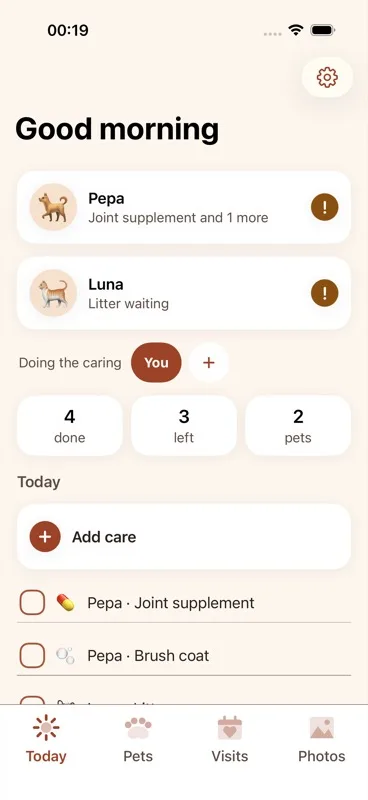
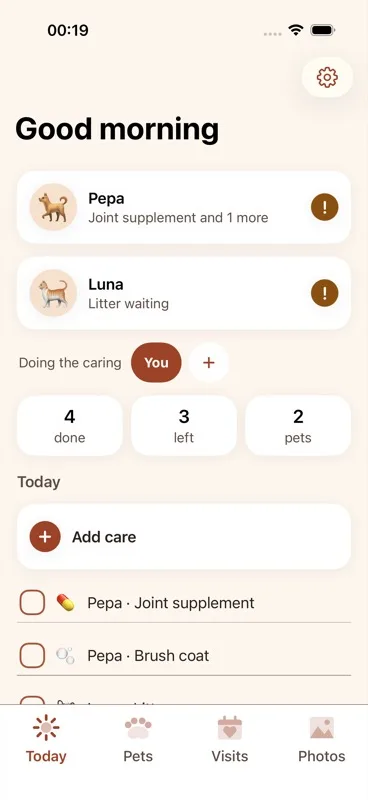
Just below the greeting is a card for each of your pets. Every card shows that pet’s photo (or an emoji face if you haven’t added a photo) along with their name and a one-line status:
- “All done today” — when there’s nothing left for that pet.
- The next thing waiting, plus how many more — for example, “Vitamins waiting” if there’s just one thing left, or “Vitamins and 2 more” if there’s several.
Each card also carries a small badge: a green checkmark badge when that pet is completely done for the day, or an amber exclamation-mark badge when something is still waiting.
“Doing the caring” — who’s on duty
Below the pet cards is a row of name chips labeled “Doing the caring.” Tap a name to mark that person as the one currently doing the care — this decides whose name gets attached the next time you tick something off.
Beside the names is a “+” button. Tapping it opens a small sheet where you can add a new name: type a name (this is required) and, if you like, add an avatar photo, then tap “Add.” This name is stored on your phone only — it isn’t shared anywhere.
If you long-press an existing name, you get two options:
- “Rename [name]” — opens a small sheet to change that person’s name. Any photo already set for them carries over. Anything they already ticked off keeps the old name attached, though, since a tick records who did it at the time it happened.
- “Remove [name]” — only shown if there’s more than one name in the row, so you can’t remove your only carer.
The summary chips
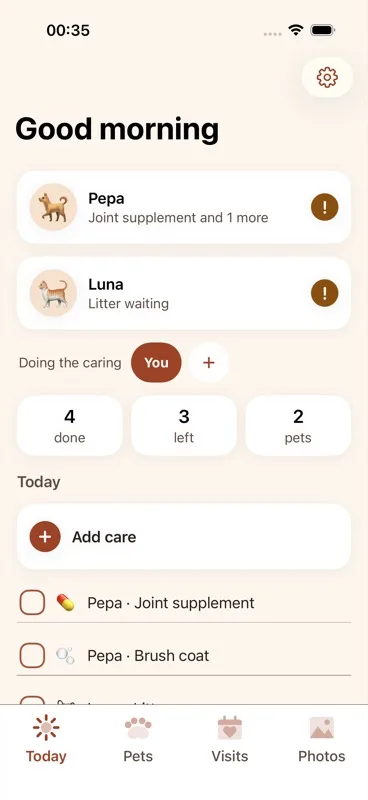
Underneath, three small chips give you a quick count for the day: how many things are done, how many are left, and how many pets you have in total.
Adding a care item
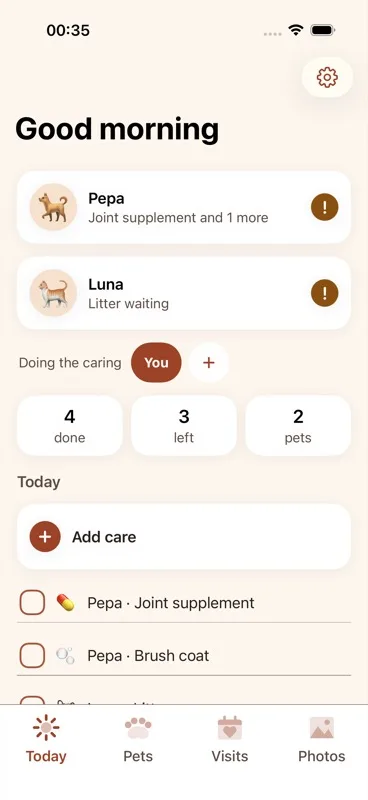
Next comes the “Today” section header, followed by an “Add care” row (this screen is covered in full in the care items guide). Tapping it behaves differently depending on how many pets you have: with more than one pet, it first asks “Who is it for?” listing each pet by name and photo, plus a “Not now” option to back out. With only one pet, it skips that question and takes you straight to the add-care screen.
Your list of open tasks
Below that is the list of everything still open for the day. Each row shows an empty checkbox square, the care item’s emoji, and the text “[Pet name] · [task title]” — for example, “Max · Morning walk.”
Tapping anywhere on the row ticks it off right away. This is deliberately a single tap with no confirmation dialog to click through, since it’s the action you’ll use more than any other in the app. That single tap is unchanged — nothing below is a replacement for it, only an addition next to it.
Press and hold a task for more options
This is separate from the carer long-press covered above — that one is for names in the “Doing the caring” row; this one is for the tasks in your open list.
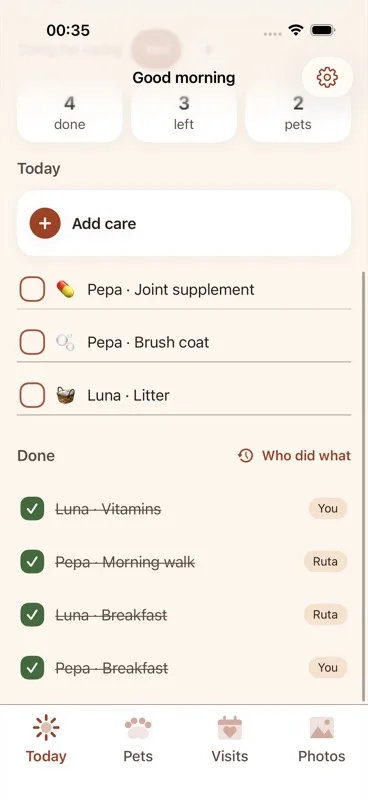
Press and hold any task on the Today list, and a menu offers two options:
- “Skip today” — waves that care off for today only. It disappears from Today and comes back tomorrow by itself; there’s nothing to undo and nothing to remember. It syncs, so a carer elsewhere isn’t left chasing something you’ve already decided against.
- “Delete completely” — asks first, in an alert with both “Delete” and “Keep it” buttons. Whatever was already ticked off for that item stays exactly as it is in Who did what — deleting the care item never erases its history.
The “Done” section
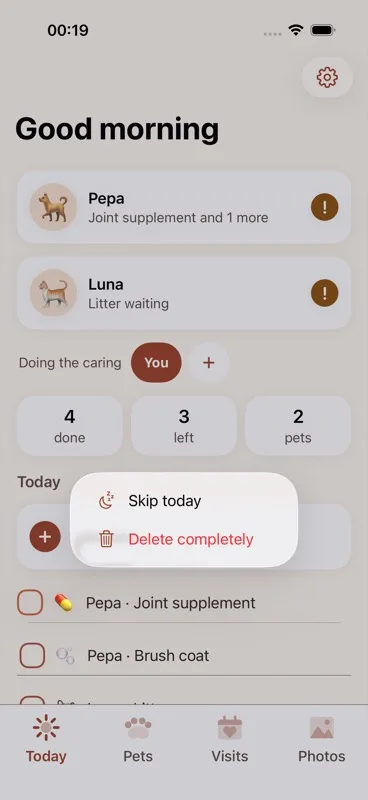
Once you’ve ticked off at least one thing for the day, a “Done” section appears below your open tasks. Its header has a “Who did what” button beside it, which opens the full activity log (see the guide on who did what). Under the header, each completed item shows as a row with a strikethrough, listing the pet, what was done, and a small capsule showing who did it.
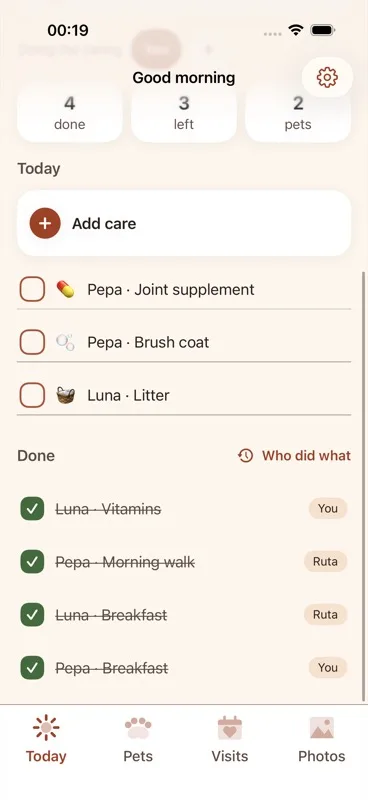
Ticking something off updates that pet’s card immediately, clears the reminder for that item if one was scheduled, and reduces the number on the app icon’s badge.
Next: how to see who did what — the full care history, grouped by day.