You’ll only see this flow once. After that, it opens straight to your Today screen. If you want to add a second (or third) pet later, that uses a different, ordinary screen — covered in the guide on adding a pet.
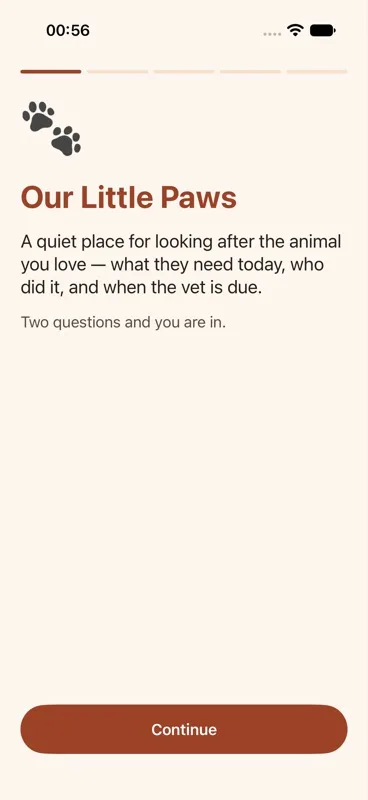
Step 1: The welcome screen for your new pet care app
- When you open the app for the first time, you’ll see the title “Our Little Paws,” a short line explaining what the app is for — “A quiet place for looking after the animal you love — what they need today, who did it, and when the vet is due” — and a reassuring note: “Two questions and you are in.”
- Tap the “Continue” button at the bottom to begin.
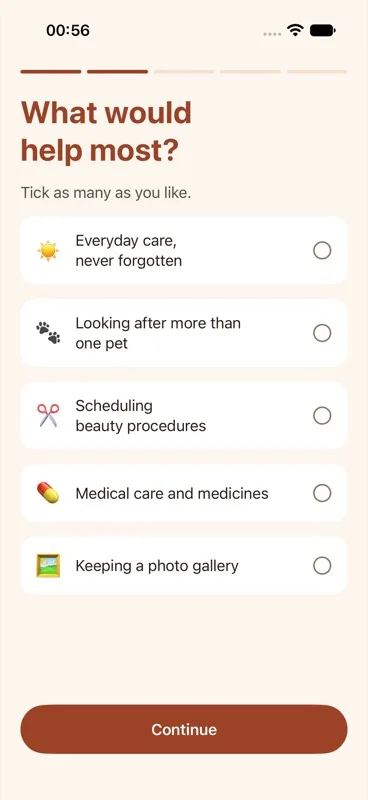
Step 2: Telling the app what would help most
This screen is a simple checklist. You can tick as many boxes as you like, or none at all — nothing here is required, and nothing you skip will be hidden from you later.
- Read the question “What would help most?”
- Tick any of the following that apply to you:
- “Everyday care, never forgotten”
- “Looking after more than one pet”
- “Scheduling beauty procedures”
- “Medical care and medicines”
- “Keeping a photo gallery”
- Tap “Continue.”
Here’s what this actually does: it only decides which category of care shows up first when you’re later adding something for your pet to do. It’s a shortcut, not a gate — every option is still available to you no matter what you tick here or leave blank.
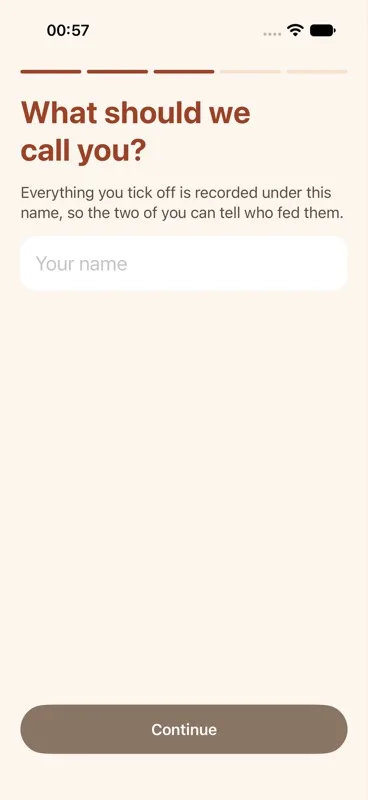
Step 3: Adding your own name to the pet care app
- Read the question “What should we call you?”
- Type your name into the field. This is required — you can’t continue without it.
- Optional: once you’ve typed your name, an avatar circle becomes available. Tap the circle, choose a photo from your phone’s photo library, then drag the photo to reposition it and pinch to zoom until it looks right inside the circular frame. Tap “Use photo” to confirm.
- Tap “Continue.” The button stays greyed out until you’ve entered a name.
Why does the app ask for your name? Because every piece of care you tick off later gets recorded under your name. If more than one person in your home feeds or walks the pet, this is how everyone can tell who already did what today.
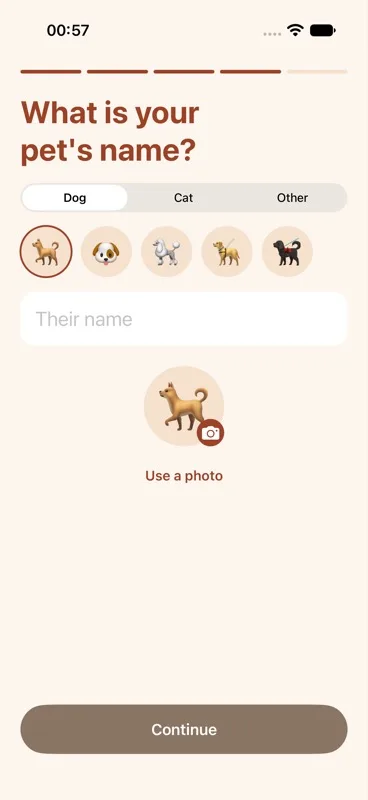
Step 4: Adding your first pet’s name and picture
- Read the question “What is your pet’s name?”
- Choose your pet’s type from the segmented control: Dog, Cat, or Other.
- If you chose Dog or Cat, tap one of the 5 preset emoji face circles shown on screen to pick a face for your pet.
- If you chose Other — for any pet that isn’t a dog or cat, like a rabbit or a bird — tap the single circle shown, then type or pick any emoji from your phone’s emoji keyboard to represent your pet.
- Type your pet’s name into the required field.
- Optional: add an avatar photo the same way you did for your own profile in Step 3.
- Tap “Continue.” The button stays disabled until you’ve entered a pet name.
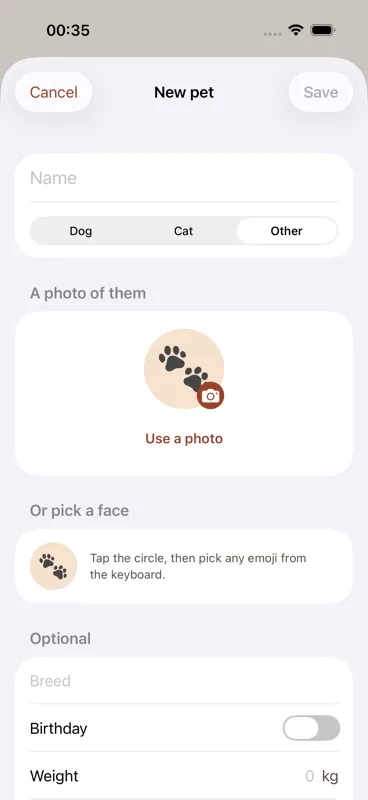
Step 5: Optional details for your pet — weight and birthday
Both fields on this screen are entirely optional. You can skip both and add them anytime later by editing your pet.
- Read the question “Anything else about [Pet name]?”
- Optional: enter your pet’s weight in the numeric field. The unit shown (kg or lb) automatically matches whatever your phone’s region setting uses.
- Optional: switch on the “Birthday” toggle. This reveals a date picker where you can only choose a date in the past.
- When you’re ready, tap the primary button. It reads “Start looking after [Pet name]” if you did not tick “Looking after more than one pet” in Step 2, or “Continue” if a second-pet step is coming next.
- Alternatively, tap “Skip for now” underneath the primary button to finish setting up this pet without entering weight or birthday.
On this same screen, underneath weight and birthday, the app shows the everyday care it suggests for your pet — feeding, water, and species-appropriate items such as a walk for a dog or litter for a cat. Each one is a row with a tick beside it, and they all arrive ticked. Leave them as they are and they will be created with your pet; untick anything they do not need and it is simply never made. Nothing appears on your Today list that you did not agree to. Care items are covered in more depth in the care items guide.
!["Anything else about [Pet name]?" screen — weight and birthday fields, plus the "Everyday care for [Pet name]" card listing starter items, each ticked, above a "Start looking after [Pet name]" button and a "Skip for now" link.](/assets/img/guides/weight-birthday-starter.webp)
Step 6: Adding a second pet, if you have one
You’ll only see this screen if you ticked “Looking after more than one pet” back in Step 2.
- Read the question “Who else is at home?”
- Choose your second pet’s type from the segmented control: Dog, Cat, or Other.
- Pick a face the same way as Step 4 — a preset emoji circle for Dog or Cat, or a tap-to-type emoji circle for Other.
- Type your second pet’s name into the required field.
- Optional: add an avatar photo the same way as before.
- Tap “Add [second pet name]” to finish setting up this pet, or tap “Not now” to skip it entirely.
Either way, your first pet is already fully set up — adding a second pet here is a convenience, not a requirement. If you skip it, you can always add another pet later from the Pets tab (see the guide on adding a pet).
Step 7: Arriving on your Today screen
- Once setup finishes, the app opens on the Today tab.
- You’ll see a time-aware greeting using your name — for example “Good morning [Name]!”, “Good afternoon [Name]!”, or “Good evening [Name]!” depending on the time of day.
- If you have a cat, the greeting playfully replaces “morning” with “mewwwwrning.” If you have a dog, it becomes “morrrrrrrning” instead. If you have more than one pet, the app alternates which pet’s version it shows each time you open the app.
![Today tab showing the time-aware greeting at the top, e.g. "Good mewwwwrning [Name]!" or "Good morrrrrrrning [Name]!", with the day's care items listed below.](/assets/img/guides/today-arrival.webp)
That’s the full first-time setup. To add another pet at any point after setup, see the guide on adding a dog or cat profile. To understand the starter care items your pet got automatically, and how to add more, see the guide on adding care items.
Next: how to add a dog or cat profile — every field on the "New pet" screen, plus editing and deleting a pet later.